The dashboard – everything in one place
A tour of Bildschirmzentrale: see how you can get your own content on any screen in just a few minutes – from the first file to a live advertising display.
Upload media
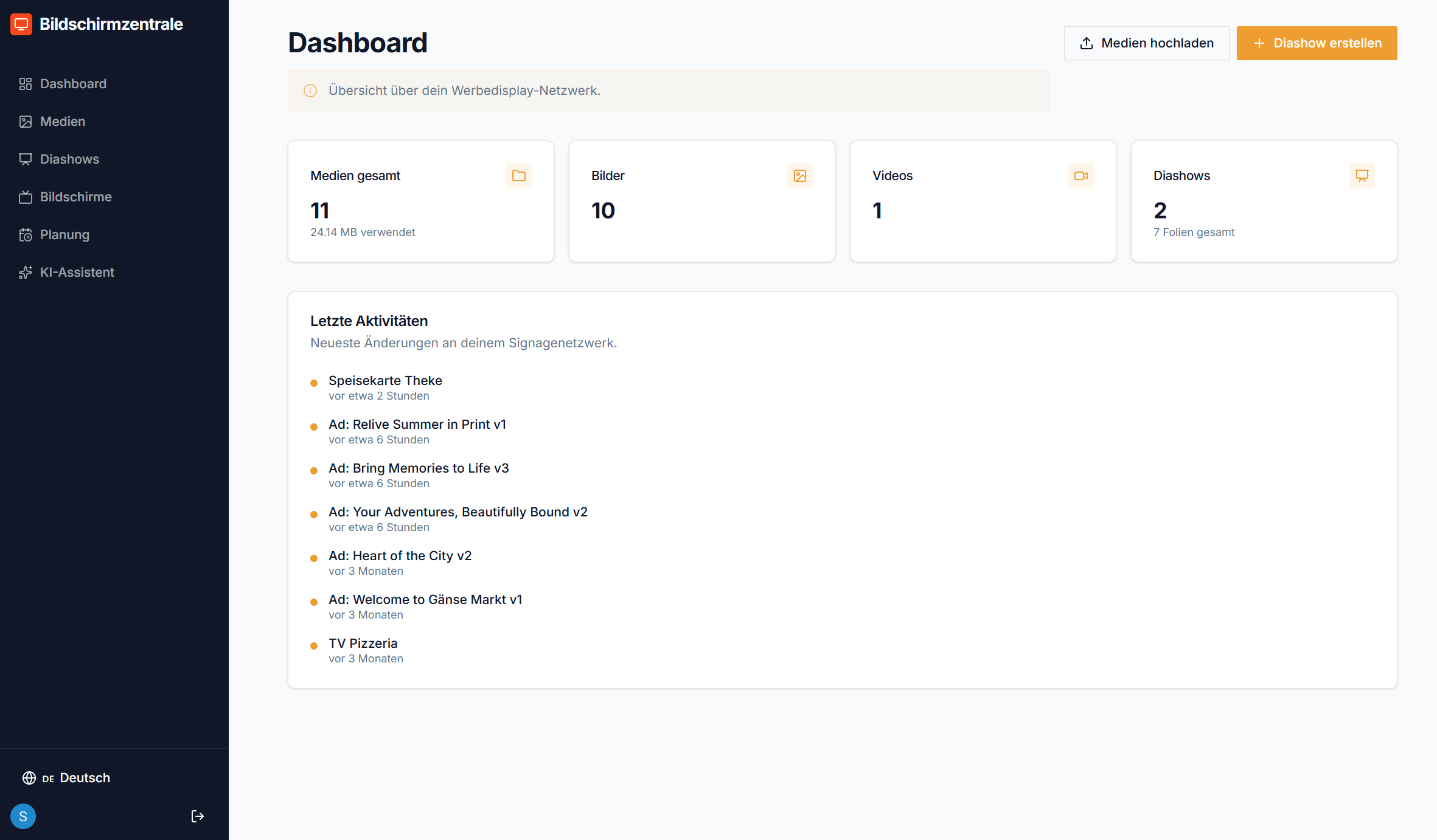
The media library is the central hub for all your content. Upload images and videos in common formats – JPG, PNG, MP4 and WebP are all supported.
- Upload images and videos by click or drag & drop
- Content is instantly available in any slideshow
- Clear gallery view with previews and file info
- Replace or delete files at any time
No own photos? No problem – use the AI assistant in the next step to create professional-looking ad slides automatically.
Generate AI ads
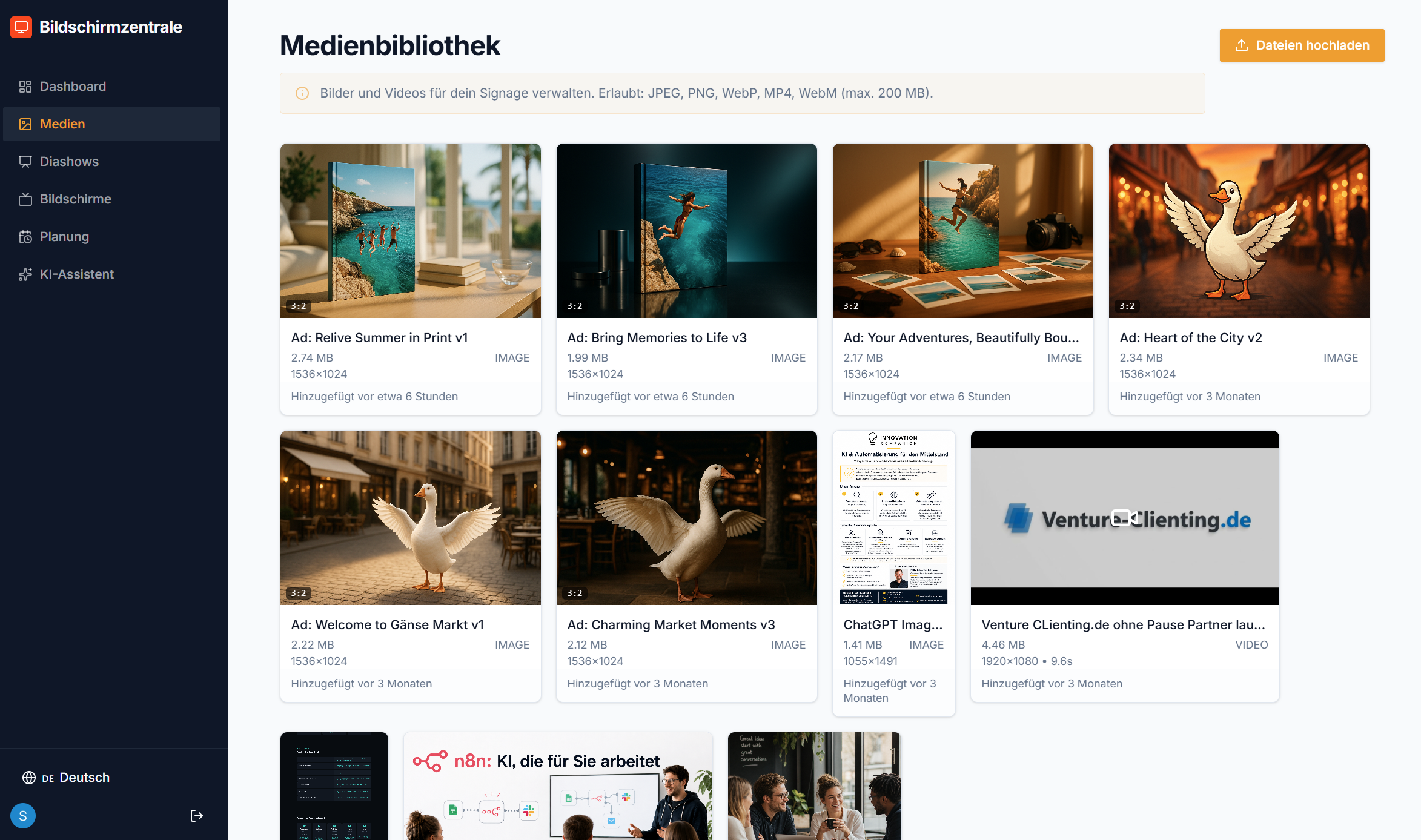
The AI assistant creates finished ad slides for your screen within seconds. Describe your offer briefly – or upload a product photo.
- Photograph your product and enter a short description
- AI generates several ad variants to choose from
- Edit each variant individually or add it directly
- Finished slides go straight to your media library
Perfect for daily specials, seasonal promotions or new products: professional-looking advertising material without a designer or expensive software.
Set up your slideshow
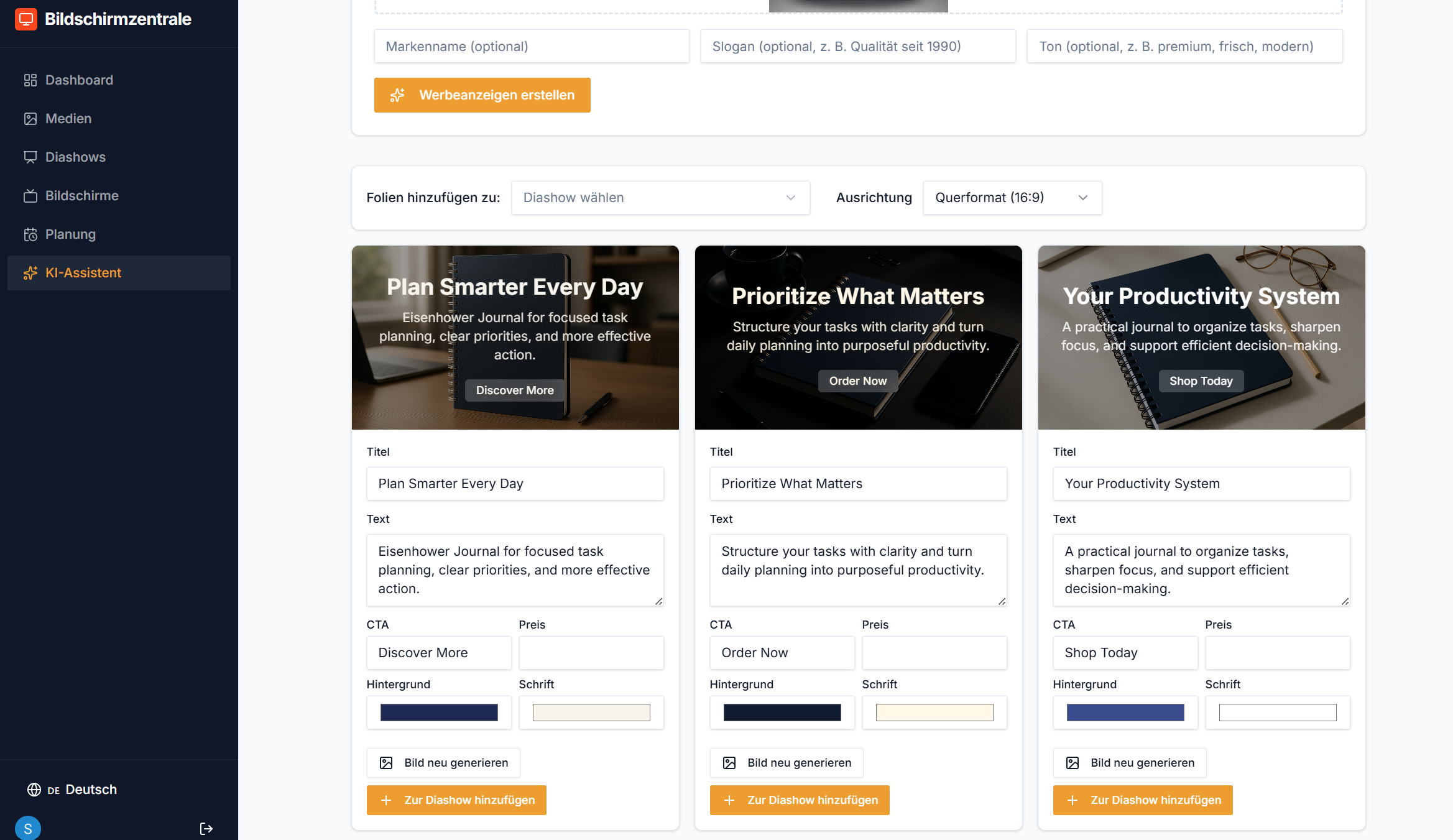
Arrange your media into a slideshow, set display durations and schedules – then assign the slideshow to one or more screens.
- Drag & drop media into the order you want
- Set individual display duration per slide
- Create schedules: e.g. breakfast menu in the morning, lunch from 11 am
- Assign a slideshow to multiple screens at once
Prepare several slideshows in advance and activate them at the push of a button – ideal for seasonal promotions or holidays.
Track screens live
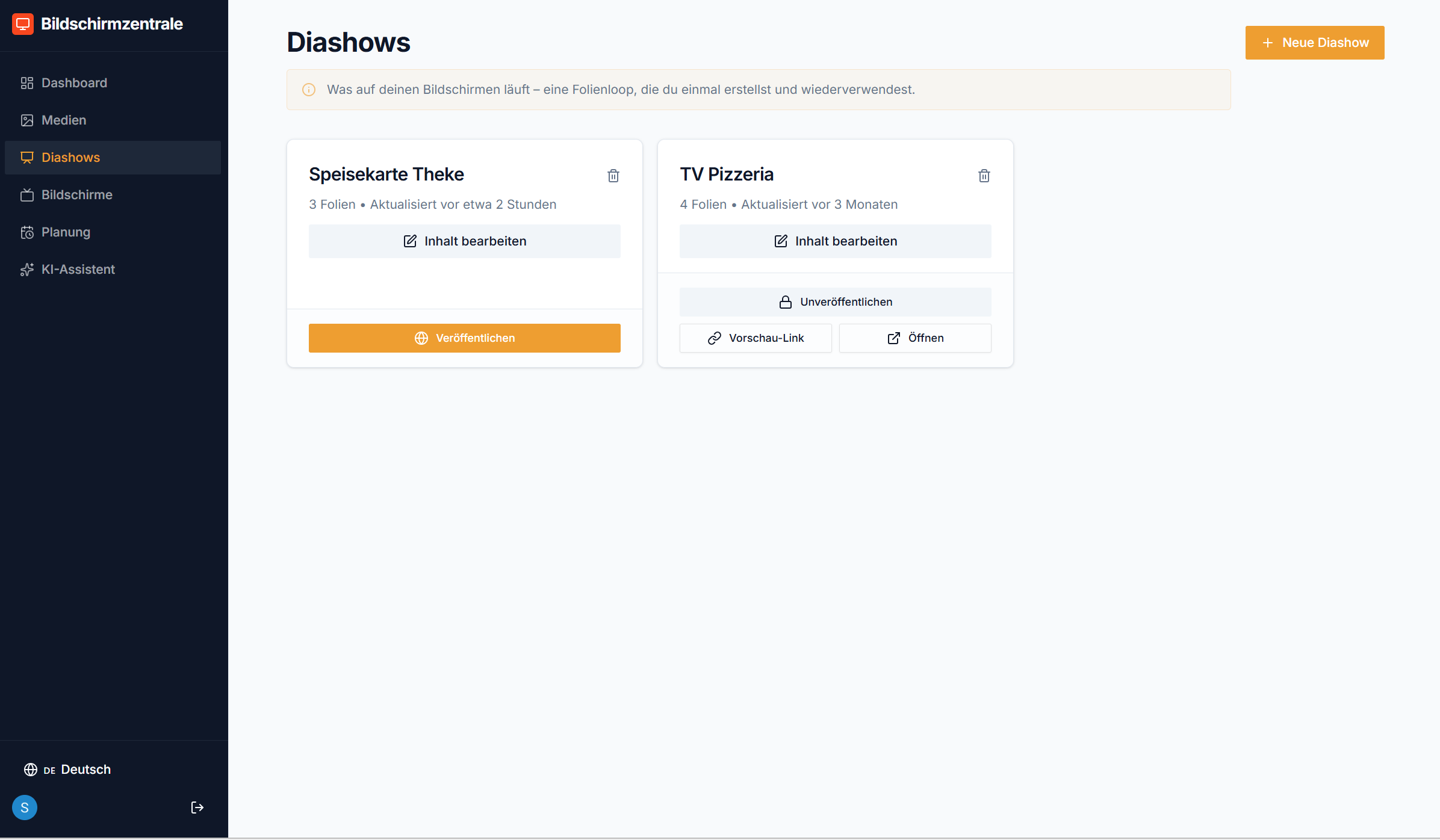
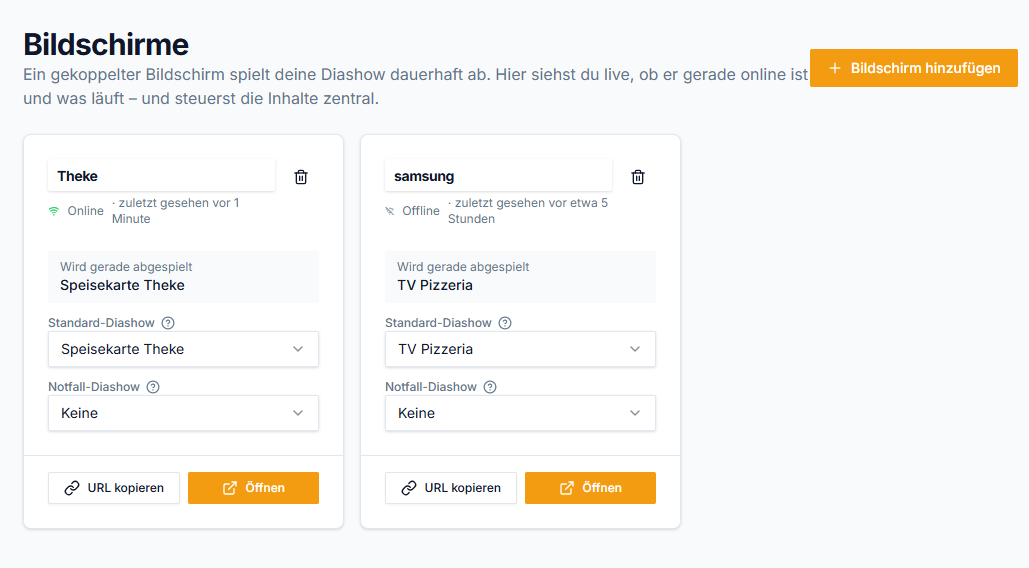
The screens view shows at a glance which displays are currently online, which slideshow is running, and when a device was last active.
- Live status: online / offline at a glance
- Active slideshow and last contact time per screen
- Connect a new screen with a pairing code in under a minute
- Switch the slideshow on any screen instantly – no restart needed
Whether a screen is in your shop, in the window, or at a different location – you stay in control from any device.
Try it for yourself
Register for free and get your first advertising screen live in under 10 minutes – no credit card required.