When a splitter makes sense – and when it doesn't
An HDMI splitter turns one signal into several: all connected screens show exactly the same picture. This is perfect when several screens should display the same slideshow, e.g. three menu boards side by side above the counter or two shop-window screens that work together.
But as soon as you need different content per screen (menu on the left, drinks on the right), different schedules or more resilience, a dedicated player per screen is the better choice. With a splitter, if the player or the splitter fails, all screens go dark at once.
| Situation | HDMI splitter | One player per screen |
|---|---|---|
| All screens show the same picture | ✔ Ideal | Possible, but unnecessary |
| Different content per screen | ✗ Not possible | ✔ Ideal |
| Different schedules per screen | ✗ Not possible | ✔ Ideal |
| Resilience (one screen fails, rest keeps running) | ✗ All affected | ✔ Only one screen affected |
| Cost per additional screen | Cable only (cheap) | Additional player needed |
| Cabling | Multiple cables from splitter to screens | Player right at the screen, just power + Wi-Fi |
In short: Same picture on multiple screens → one player with a splitter is enough. Different content or schedules → one player each. In Bildschirmzentrale you simply pair as many screens as you need in both cases – the splitter just distributes the finished picture behind the player.
What you need
- HDMI splitter 1x2 or 1x4: "1x2" means one input, two outputs; "1x4" one input, four outputs. Make sure the splitter supports your desired resolution (4K@60 Hz if you have 4K screens). Cost: approx. $20–80.
- HDMI cables long enough and certified: One cable from the player to the splitter, then one cable to each screen. Use certified cables (High Speed / Ultra High Speed) to avoid flickering.
- The splitter's power supply: Active splitters need power. Use the included power supply – splitters often run unstably off a TV's USB port.
- A player: Fire TV Stick, Android TV box, Google TV device or mini PC – anything that plays your slideshow.
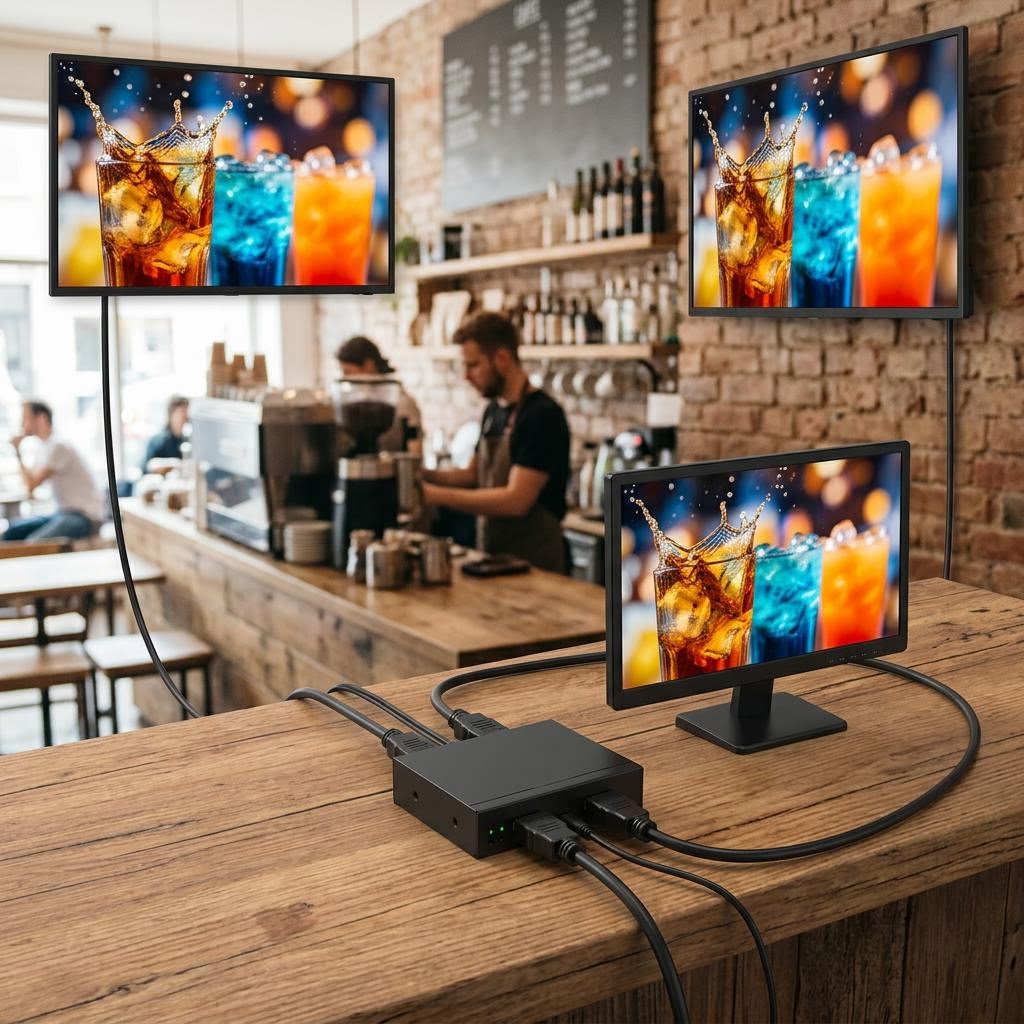
Step-by-step setup
- Player to the input (IN): Connect your player via HDMI to the input labelled "IN" on the splitter.
- Screens to the outputs (OUT): Connect each screen with its own HDMI cable to an "OUT" port.
- Power last: First switch on all screens, then plug in the splitter's power supply. That way the splitter detects all screens cleanly.
- Set the EDID: Many splitters have a small switch or menu for the EDID mode. EDID is the info a screen reveals about itself (which resolutions it supports). The splitter has to decide which resolution to report to the player.
EDID modes explained simply
- Copy: The splitter copies the capabilities of one specific screen (usually the one on OUT 1) and reports them to the player. Good when all screens are identical.
- Auto: The splitter automatically picks the highest resolution all screens have in common.
- Downscale: The splitter outputs the fitting resolution to each screen – useful when one screen supports 4K and another only Full HD.
Most common mistake: You connect a 4K screen and a Full HD screen to the same splitter. With the EDID mode set to "Auto" or "Copy", the splitter forces both screens to the lower resolution (Full HD) – so your 4K screen only shows Full HD. Use a splitter with a "Downscale" function if you mix different resolutions, or use screens with the same resolution.
Cable routing and cable lengths
HDMI is designed for short distances. In practice:
- Up to approx. 15 metres: Standard (passive) HDMI cables work reliably, as long as they are certified.
- Over 15 metres: Use active HDMI cables (with a built-in amplifier) or an HDMI extender over a network cable.
Plan your cable routes in advance: where does the splitter sit, how far is it to each screen? Run cables in cable ducts where possible so nothing hangs down visibly.
HDMI extenders over network cable for long distances
If you need to send a signal beyond 15 metres – e.g. into another room or across the shop – an HDMI extender over LAN helps:
- It consists of a transmitter (at the splitter output) and a receiver (at the screen).
- Between the two runs a standard network cable (CAT6 recommended).
- Depending on the model, this bridges 50 to 100 metres.
This is worthwhile when a screen hangs far from the player and you don't want to use Wi-Fi there. Note: the extender does not replace a second player – the distant screen still shows the same picture the splitter delivers.
Limitations of a splitter
- All screens show the same: A splitter can only duplicate one signal, not distribute different content.
- No independent schedule: You can't run the breakfast offer on one screen in the morning and the lunch menu on another.
- One failure affects all: If the player or the splitter fails, all screens go black.
Relation to Bildschirmzentrale: If several screens should show the same slideshow, a single paired screen in Bildschirmzentrale is enough – the splitter distributes the picture behind it. If you need different content or schedules per screen, pair one player per screen instead. Both take just a few minutes to set up – find an overview of all guides in the Guides section.
Common problems and solutions
One screen stays black:
First check the cable and the output (test on a different OUT). Switch on the screen before you power the splitter. If that screen is wired significantly longer, the cable may be too long – try a shorter or an active cable.
The picture flickers or briefly disappears:
This is usually down to the cable (not certified or too long) or an insufficient power supply for the splitter. Use certified cables and always the included power supply.
Wrong or too low resolution:
Set the EDID mode appropriately. With mixed resolutions (4K + Full HD) you need a splitter with "Downscale", otherwise all screens run at the lowest common resolution.
No picture despite correct cabling (HDCP):
HDCP is a copy protection scheme. For a pure slideshow of your own images and videos, HDCP normally doesn't matter. If nothing appears anyway, check whether the splitter supports HDCP (stated on the packaging) – a suitable splitter fixes the problem.