1. Why Android TV / Google TV?
Android TV and Google TV are Google's operating systems for televisions and TV boxes. For a digital signage display, they offer several advantages:
- Google Play Store: You install apps as easily as on a smartphone – including dedicated kiosk browsers for continuous operation.
- Free choice of browser: You're not tied to a single browser and can pick the one that suits your slideshow.
- Affordable boxes: Suitable devices are available new from around $30–60.
- Google account: With a free Google account you download apps and keep the box up to date.
Android TV vs. Fire TV Stick: Both work similarly. Amazon's Fire TV Stick is especially beginner-friendly, while an Android TV box gives you more freedom when choosing browsers and apps. If you want to compare the Fire TV Stick, read our Fire TV Stick guide.
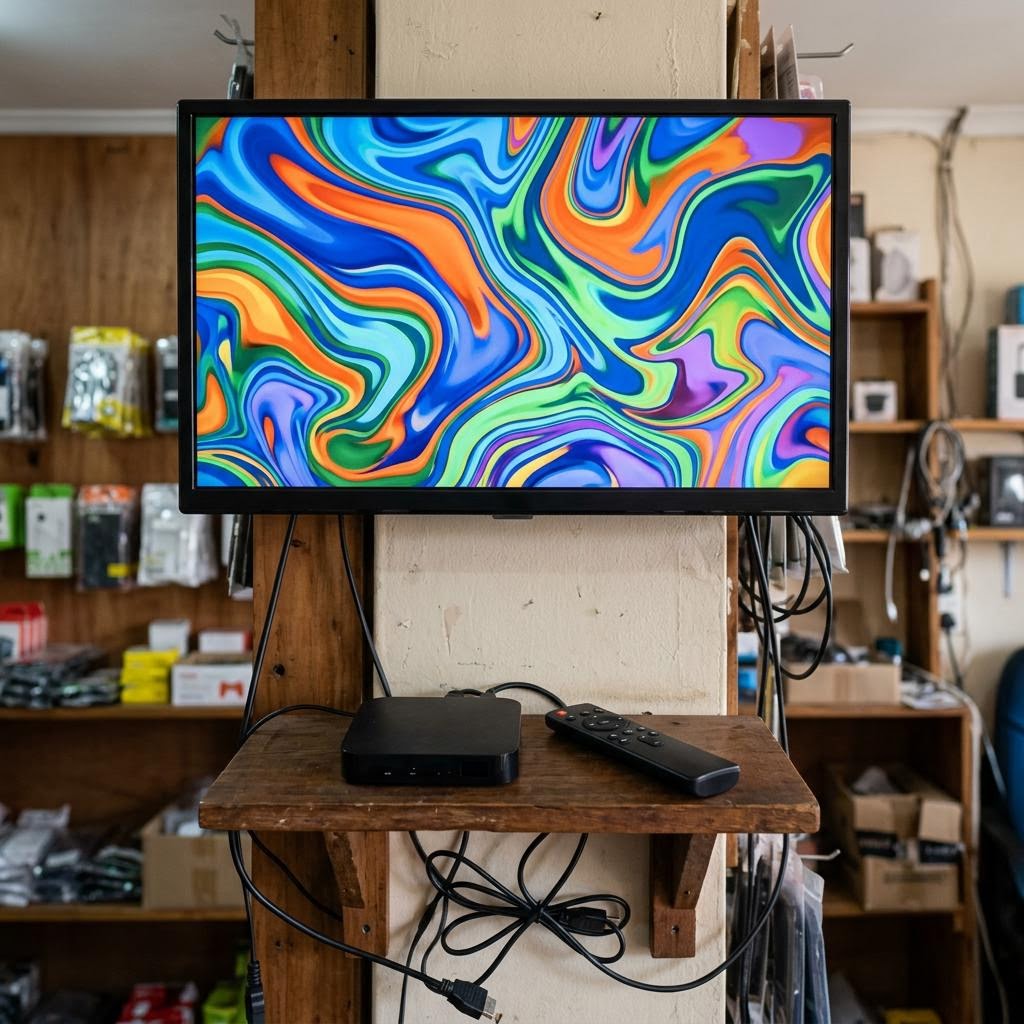
2. First-time setup of the box
The initial setup only takes a few minutes and works just like setting up a new smartphone:
- Connect the box via HDMI to a free port on your screen.
- Connect the power supply and plug it into the socket. Select the matching HDMI input on the screen.
- Follow the setup wizard: choose the language, connect Wi-Fi (or plug in a LAN cable).
- Sign in with your free Google account. If you don't have one yet, create it directly on screen or in advance on a computer.
- Let the updates download and install – this is important for security and stability in continuous operation.
Tip: Note your Google account credentials in a safe place. You'll need them if you later have to reset or reconfigure the box.
3. Set up the browser in kiosk mode
To run your slideshow permanently and without distracting controls, set up a browser in kiosk mode. We recommend the Fully Kiosk Browser – for a first test, Chrome in fullscreen is also fine.
Recommended: Fully Kiosk Browser
- Open the Google Play Store and install the Fully Kiosk Browser (free trial, full version approx. $7 one-time payment).
- Open Fully Kiosk and enter your Bildschirmzentrale player URL under Start URL (see section 4).
- Enable in the settings:
- "Kiosk Mode" (locks the back button and homescreen)
- "Start on Boot" (browser starts automatically after every restart)
- "Screen Always On" (disables standby)
- Put the remote away – the box now permanently shows your slideshow.
Free basic option: Chrome in fullscreen
If you want to test without an extra app first:
- Open Chrome (from the Play Store) and enter your player URL.
- Enable fullscreen or simplified view in Chrome so the address bar and menus are hidden.
- Note: Chrome does not restart automatically after a power outage and does not keep the screen permanently on. For true continuous operation, Fully Kiosk is the more reliable choice.
4. Enter the Bildschirmzentrale player URL
Every screen gets its own player URL in Bildschirmzentrale. Here's how you connect the box to your account:
- Sign in to the Bildschirmzentrale dashboard.
- Create a new screen and open the pairing section. There you'll find the player URL (or a pairing code).
- Enter this player URL as the start URL in Fully Kiosk (or in Chrome).
- As soon as the box opens the URL, the screen appears as paired in the dashboard – and your slideshow starts.
Good to know: The box picks up changes to your slideshow automatically. You don't need to reconfigure anything on the box – everything runs conveniently through the dashboard.
5. Disable power saving, restrict updates
To keep the box running reliably, disable all power-saving automations:
- Disable the screensaver: Open the box settings under Device Preferences > Screen Saver and set it to "Off" or a very long delay.
- Prevent standby: Disable automatic sleep. Fully Kiosk additionally keeps the screen awake with the "Screen Always On" option.
- Restrict automatic updates: Open the Play Store > Settings > "Auto-update apps" and set it to "Don't auto-update apps". This way the box won't install updates during opening hours.
Important: An automatic update can restart an app and briefly interrupt your slideshow. Run updates deliberately before or after opening hours instead of letting them happen automatically.
6. What to look for when buying
Not every cheap box is suitable for continuous operation. These points help you choose:
- Certified Android TV / Google TV: Choose a device with official Android TV or Google TV – not a no-name box with phone Android on top. Only certified devices have full access to the Google Play Store and receive updates.
- At least 2 GB RAM: Less memory quickly leads to stuttering and crashes in continuous operation.
- Wi-Fi ac or LAN port: Look for modern Wi-Fi (ac/WiFi 5 or newer) or – even better – a LAN port for a stable wired connection.
- Remote with TV control/CEC: A remote that can also turn the screen on and off via HDMI-CEC makes operation much easier.
7. Common problems and solutions
The app doesn't start automatically after a power outage:
Check the "Start on Boot" option in Fully Kiosk. Also set Fully Kiosk as the default launcher so the slideshow appears immediately after startup. Some boxes also offer an "Auto power on after power loss" setting.
Weak or dropping Wi-Fi:
If the box has poor reception behind the screen, use a LAN adapter (USB or Ethernet adapter) and connect the box via cable. That's the most reliable connection for continuous operation.
Overheating behind the screen:
Heat builds up quickly behind the screen. Provide some space and air circulation, or mount the box to the side rather than directly behind the hot panel. Persistent overheating can cause the box to crash or shut down.